
Go to All services >> Virtual machines.
Select the required Virtual machine.
In the Overview section, note down the Subscription ID. The Subscription ID is the password for the default user for accessing the LogPoint user interface.
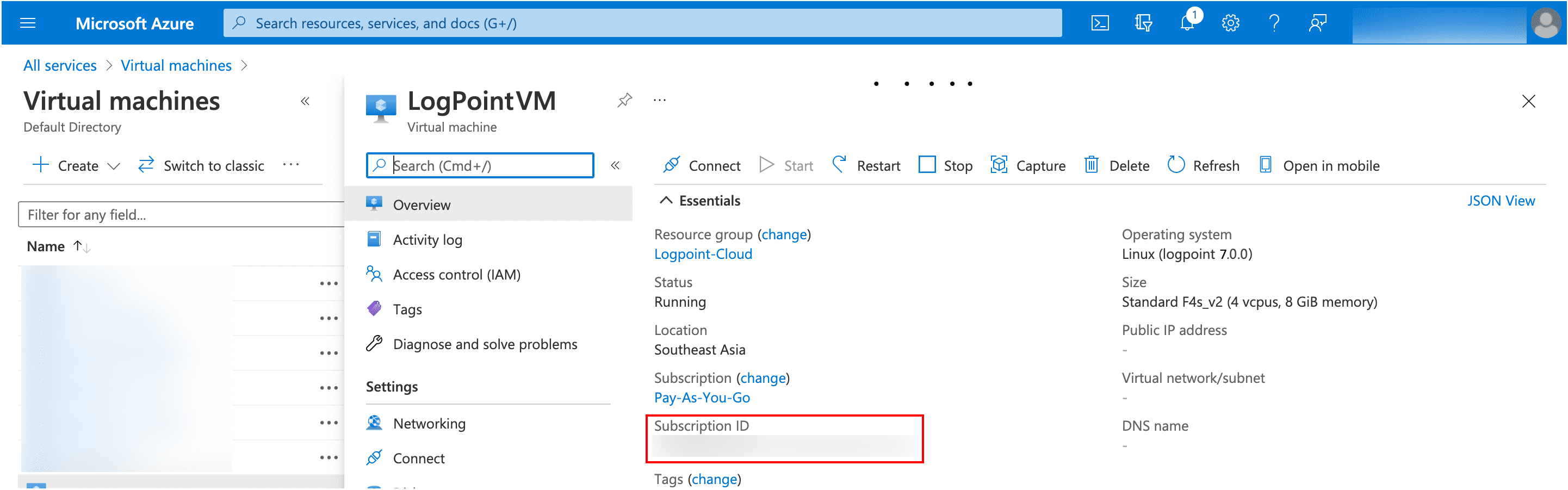
Obtaining the Subscription ID
Select Networking from the sidebar.
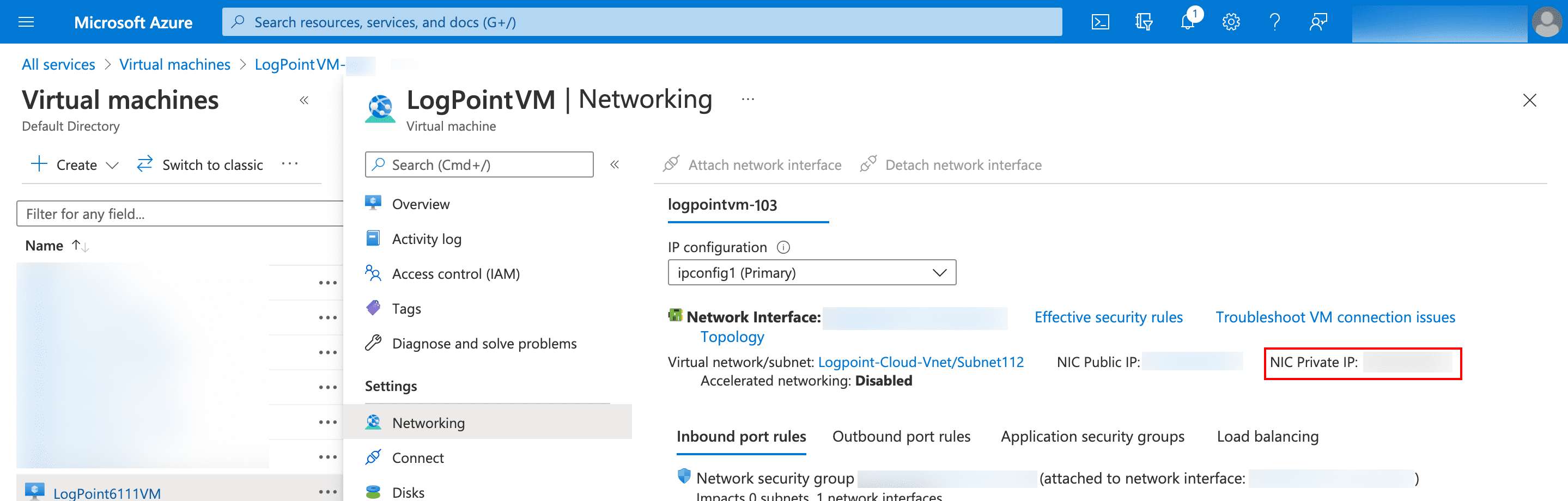
Obtaining the Private IP
Note down the NIC Private IP. The IP address works as the URL to access your LogPoint user interface and to establish an SSH connection from remote devices.
Note
We recommend you to change the private IP address of the deployed LogPoint instance directly from the Azure Portal. If you change the IP address using the change-ip command, make sure it matches the NIC private IP address in the Azure portal.
Enter the NIC Private IP in a web browser.
Example: https://10.10.98.68
Log into the user interface using the following credentials.
Username: admin
Password: <Subscription ID>
Change the password through My Preferences >> Change Password.
You need a valid LogPoint license to operate your application. This license contains the details of the purchased product, the number of sources the product can handle, and the license’s expiration date.
Before adding a license, contact your vendor and provide them your Hardware Key. You can find the hardware key under Settings >> System >> LogPoint License. The vendor then sends you the license key based on your requirements.
To install a LogPoint license:
Download the License Key.
Go to Settings >> System >> LogPoint License.
Click Add License.
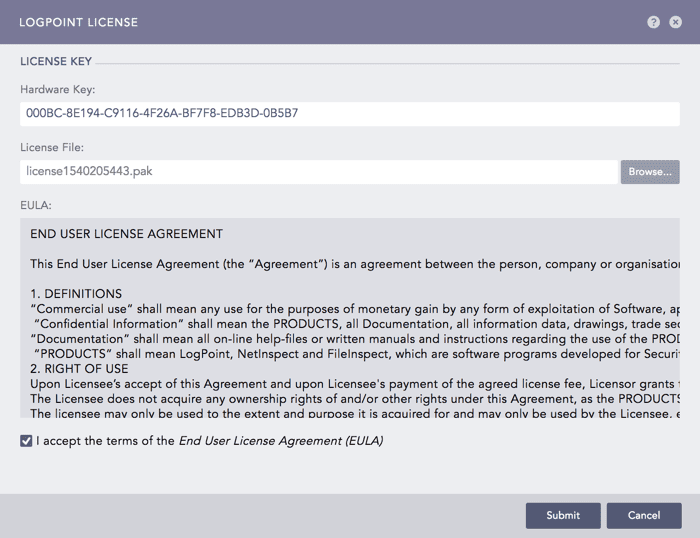
Adding a LogPoint License
Browse the file containing the License Key.
Go through the END USER LICENSE AGREEMENT (EULA). Mark the checkbox if you agree with the terms and conditions of the EULA.
Click Submit.
After successfully installing LogPoint, you can now access the system through the console using the username li-admin. The li-admin user needs an SSH key pair to establish an SSH connection.
You can create and use SSH key pair for the li-admin user by following the steps given below.
Configuring SSH key pair for the li-admin user
Go to Settings >> System >> System Settings.
Select the SSH Key Pair for li-admin tab.
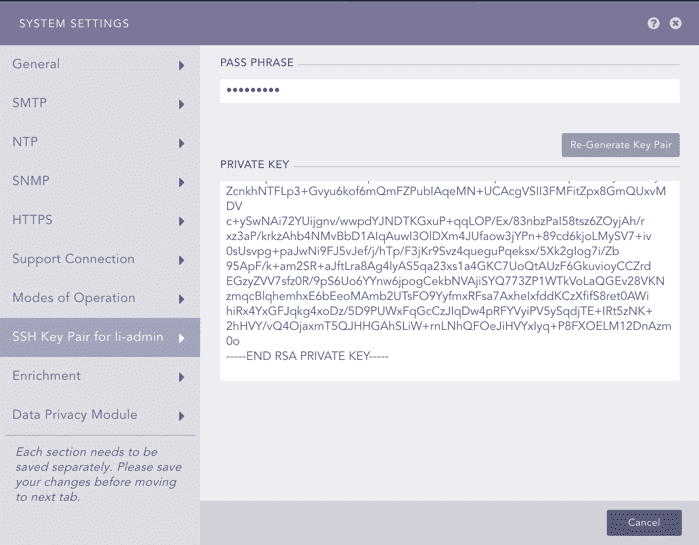
Generating SSH key pair for a li-admin user
Provide a Pass Phrase.
Click Re-Generate Key Pair.
Copy the Private Key and save it in a file.
Use the chmod 400 <filename> command to make the key accessible for an SSH connection.
Example:
chmod 400 LogPoint_release_700.txt
Use the ssh -i "<filename>" li-admin@<LogPoint_Server_IP> command.
Example:
ssh -i "LogPoint_700.txt" li-admin@10.10.98.68
Enter the Pass Phrase to establish the SSH connection from the remote device.
Once the SSH connection is established, you can either use a password authentication or SSH key pair to access the system.